
Steam Machine
Daft Punk were kind enough to compose a score for this post; check out the live mash-up version too!
Twelve days ago my Gabe Cube Steam Machine was delivered, not even a week after it’s official release date. Given the heavy demand for any new Valve hardware I should consider myself lucky I was even able to order one so soon after the reservation queue system opened. But the insane pricing1 makes it more emotionally complex. I feel somewhat ashamed that I could and did afford this. The reasons behind all the recent price hikes make me depressed and want to ███ ██████.
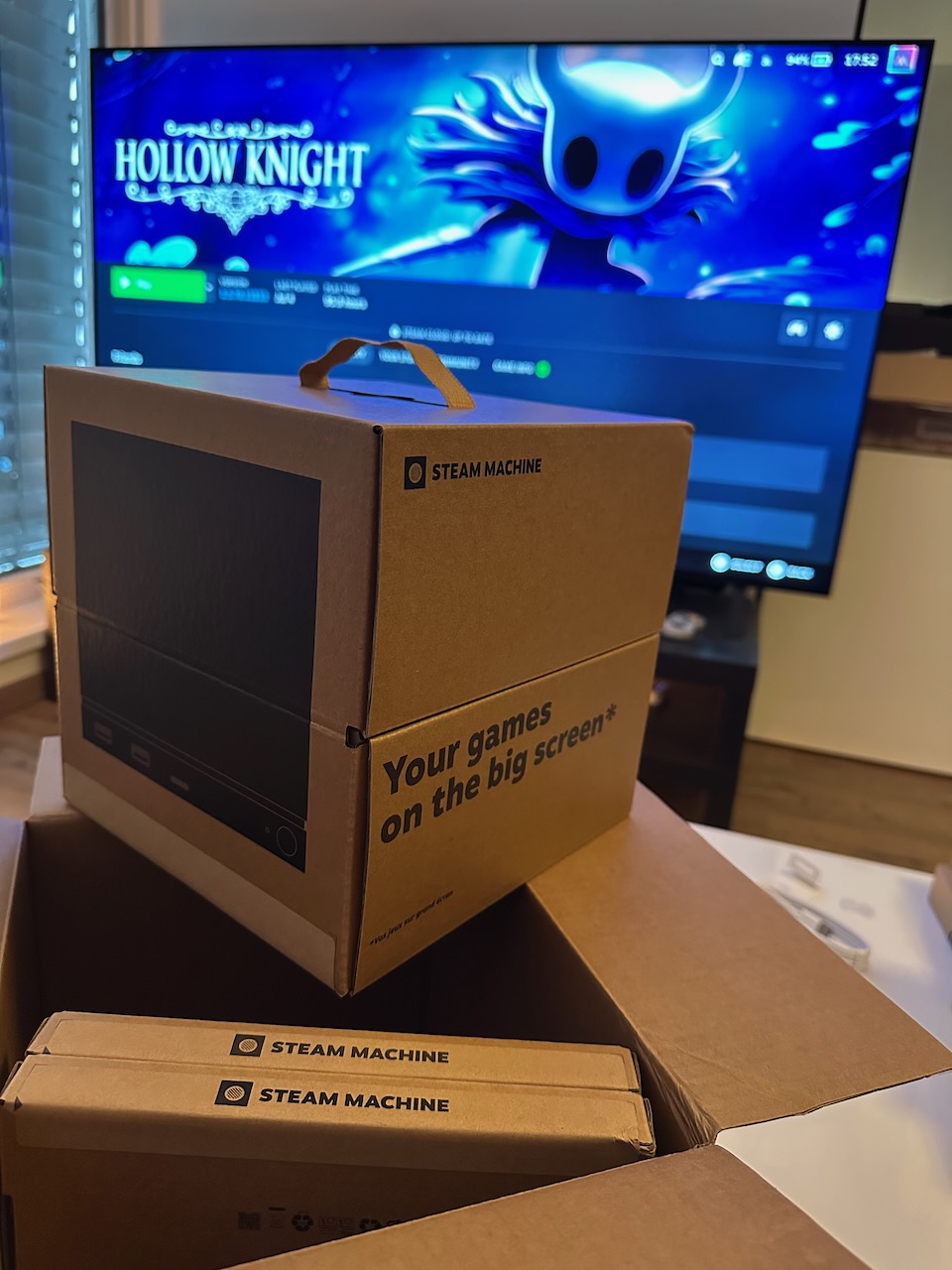
I did certainly not need a Steam Machine. I have a Steam Deck already, with the Dock to have it plugged into the TV almost all the time. I also have a pretty beefy desktop PC on which I do most of my gaming. Sometimes I was using Remote Play to enjoy the full graphics power of my 7900 XTX on the big TV screen. This usually works well, but only when latency doesn’t matter much – I play too many try-hard games like Rocket League, Celeste, Hollow Knight etc. at a level where a couple of extra milliseconds in input lag are immediately noticeable. When I need full graphics fidelity and perfect response times, I sometimes connect the PC to the TV directly with a long cable – but it’s an annoying solution due to the room layout.
The Steam Machine will not improve that situation a lot. It has more power than the Deck, but not enough that I wouldn’t still use the PC for anything demanding. There’s two reasons that made me decide to get the Steam Machine:
- A year from now the current price might be considered a great deal. I’m mildly terrified of any of my existing hardware breaking at a time when prices are even worse than today. While the Steam Machine is no match for my gaming PC it’s at least a more powerful fallback than the Deck.
- I’m by no means a big fan of Gabe or Valve, but Steam OS and their hardware remain one of the very few systems that feel somewhat user-friendly and open. I have confidence that in ten years I will still be able to do whatever I want with this thing – because Valve also wants that, which in turn creates a community of like-minded people around it. This is something I am willing to invest into. I got a Framework laptop for similar reasons, and the new Pebble, and soon probably a new Jolla as well. These aren’t Pine64 levels of openness, but it all strikes me as healthier than the
fascistdystopianbig tech dominating our lives these days. (Yes, I agree that Valve is much more big tech than the other things I listed.)
With all that out of the way, I’ll speak a bit about my experiences with the machine now. I’ve spent around twenty hours actively using it so far: continuing my current journey of 100%ing Hollow Knight, knocking out Golf Peaks in an afternoon, testing it with Rocket League. The rest of the time was just experimenting around with other aspects like using it as a media player, and catching up on Decky Loader which I never got around to use on the Deck.
Steam OS
If you’ve got a Deck or used Big Picture mode in the last couple of years, you already know what to expect. I enjoy that interface and they continue making it better, but there’s still room for improvement (some of which the homebrew scene luckily solves).
One of the more delightful additions that came with the Deck were startup movies. The Store selection is pretty decent, and about the only useful thing you can do with Steam Points. The community also created a near infinite amount of custom ones, e.g. over 30GB worth (7500+ videos, I downloaded them all) on steamdeckrepo.com. But I don’t think I’ll ever find a better one than the Spooky Scary Skeletons video.
The only Machine-specific rough edges I’ve encountered were:
- CEC is working perfectly fine, however for some weird reason it does not work for controlling my TV volume. Not a big deal as you can just opt to not do CEC for volume and instead control the output volume of Steam OS itself. (Useful shortcut: While holding the Steam button on the controller, left analog stick up and down adjusts the volume.) It’s odd because powering the TV on/off and switching to the correct HDMI input are working perfectly fine. Though I’ve been fairly unhappy with newer LG TVs when it comes to basically anything except image quality, so not sure which party is to blame here.
- Game Recording is broken, at least for Hollow Knight while using VRR. I haven’t done any extra testing because I don’t care that much about recording, and was glad to at least find a little bit of time to actually play – but the videos are just a blank/white screen. I’ve used this feature for literal hundreds of hours on my desktop and it usually works really well, so I’m sure this will get sorted eventually.
- In a past life I’ve been streaming to Twitch and recorded gameplay for YouTube videos, both via OBS. Since I switched to Linux, I’ve experimented a lot with gpu-screen-recorder. I know more about gameplay/screen capturing than I ever wanted to, so I’m well aware that Steam’s background recording could be a lot better. Game-only audio capturing on Linux is still not implemented two years later,2 even on the Machine/Deck where they control the whole stack.
But the way in which “it’s just there” still makes it incredibly useful. Without this feature, I would not have videos for my first Hades 2 clears, the first time I finally beat Nightmare King Grimm or this Untitled Goose Game speedrun. - That said, the UX is still rough – on the regular desktop client it is usable, but in Big Picture mode it is pathetic. There is not even a way to zoom out on the timeline when cutting a clip out of a longer video. You can only scrub in a fixed 15 second interval, once per button press. No adaptive speed-up when holding the button, or anything else that would help when you work with a video longer than a few minutes. In the “Post-Game Summary” section after you quit a game, the recordings have no context menu. Most of the time I want to immediately discard them, but the way to do that is infuriating:
- Open the recording, which always starts playback.
- From there, open up the Gallery.
- Be presented with an empty screen because the default filter is to only shows Clips, not Background Recordings or simply All Media.
- Change the filter.
- Finally have a context menu for the recording to actually delete it.
Absolute fucking clown show, see for yourself. 🤡
- In a past life I’ve been streaming to Twitch and recorded gameplay for YouTube videos, both via OBS. Since I switched to Linux, I’ve experimented a lot with gpu-screen-recorder. I know more about gameplay/screen capturing than I ever wanted to, so I’m well aware that Steam’s background recording could be a lot better. Game-only audio capturing on Linux is still not implemented two years later,2 even on the Machine/Deck where they control the whole stack.
- I spotted a couple of strings in the Settings and dialogs that still referenced the “Deck” rather than the “Machine”. You’d think that would have had enough time to get sorted, given the RAMaggedon-owed delays in shipping this thing.
Gaming performance
I’m not the right person to get deep into this – I’m weird about how I use my gaming hardware. As a patient gamer I almost never play new games when they come out. Mainly because I’m stingy. But also because I hate when the fans need to start spinning fast, though I do like running things at ultra settings and at 60+ fps. Ideally in 4K, or at least 1440p. This generally works out well for me, I rarely find myself in a situation where I’m not satisfied with performance and quality of what I am playing, or the selection of what I can play given those requirements. It’s a peaceful life, if you will.
And I’m the same way with Deck and Machine. I’m very happy to report that the Machine runs Hollow Knight at 4K60, but that’s not going to surprise or wow anyone. Aside from another 2D indie title I only tried Rocket League – which also manages to keep a rock-solid 4K60 at ultra settings, which I honestly didn’t even expect. A nice surprise from my perspective, but certainly nothing miraculous. I’ll have to give this a shot for actual competitive gameplay some day – I have become very accustomed to the 144fps experience on my gaming monitor for this game.
Steam Machine as a Media Player
One of the first things I’ve attempted once I had my Deck connected to the TV was to use it as an HTPC. Many many years ago, and for more than a decade total, I had been a happy Plex HTPC / CoreElec user. When 4K and HDR took over, that solution unfortunately wasn’t really suitable anymore. Ever since then, I had more begrudgingly than happily used the official webOS Plex client, because it was the easiest way to not run into a myriad of problems with Dolby Vision playback, proper refresh rate switching for true 24p, and other important details. But given that TV manufacturers these days actually spit in your face even on several-thousand-bucks models, I always wanted to find a solution that would allow me to keep the TV completely offline.
Unfortunately, the Deck turned out to be a non-starter for that. The Plex HTPC app was available easily enough through Discover, but when starting it as an externally added application from Steam OS it would only run in 720p – a blurry mess. I played around a lot trying to make this work, but it was not meant to be. If I remember correctly it worked okay in desktop mode, but switching back and forth between modes takes a bit (especially on the Deck) so that was not an option.
It was not all that long ago when I tried this, so I didn’t expect different results with the Steam Machine – but it actually worked right away. Glorious 4K. I’m not sure if refresh rate switching actually works when started through Steam – admittedly the dark magic of gamescope is a bit beyond me, and apparently LG doesn’t offer a good way to determine what exact mode the display is currently running at.3
However, I am certain that Dolby Vision does not work – so my initial excitement was short-lived. I’ll have to experiment a bit more if dual-booting into an OpenELEC-based system could work, though that’d be mostly out of curiosity – as mentioned before, having to dual-boot would be nowhere near the required level of comfort.
While exploring this topic, I learned about VacuumTube which also worked very nicely without any effort at all. Flawless controller support, and SponsorBlock included as well. I’ve long been using youtube-webos (actually this improved fork) on the TV to get rid of at least most of the cancer YouTube is still shoving down your throat even with a Premium subscription. Always happy to see more options to achieve that.
I actually have taken my TV offline about a month ago. I am now using a dedicated Android-based box for both Plex and YouTube that meets all demands. Switching between two different HDMI inputs (that box and the Steam Machine) is quite alright and taking the TV offline was immensely satisfying. But if I could figure out a way to get Dolby Vision working in Plex on the Steam Machine, I’d be very happy to scale down to just the one device for everything. I’ve been meaning to explore Jellyfin anyway, maybe that would fare better here. Not a huge priority, though.
Decky Loader
I’m currently using seven Decky Loader plugins to improve the UI and experience:
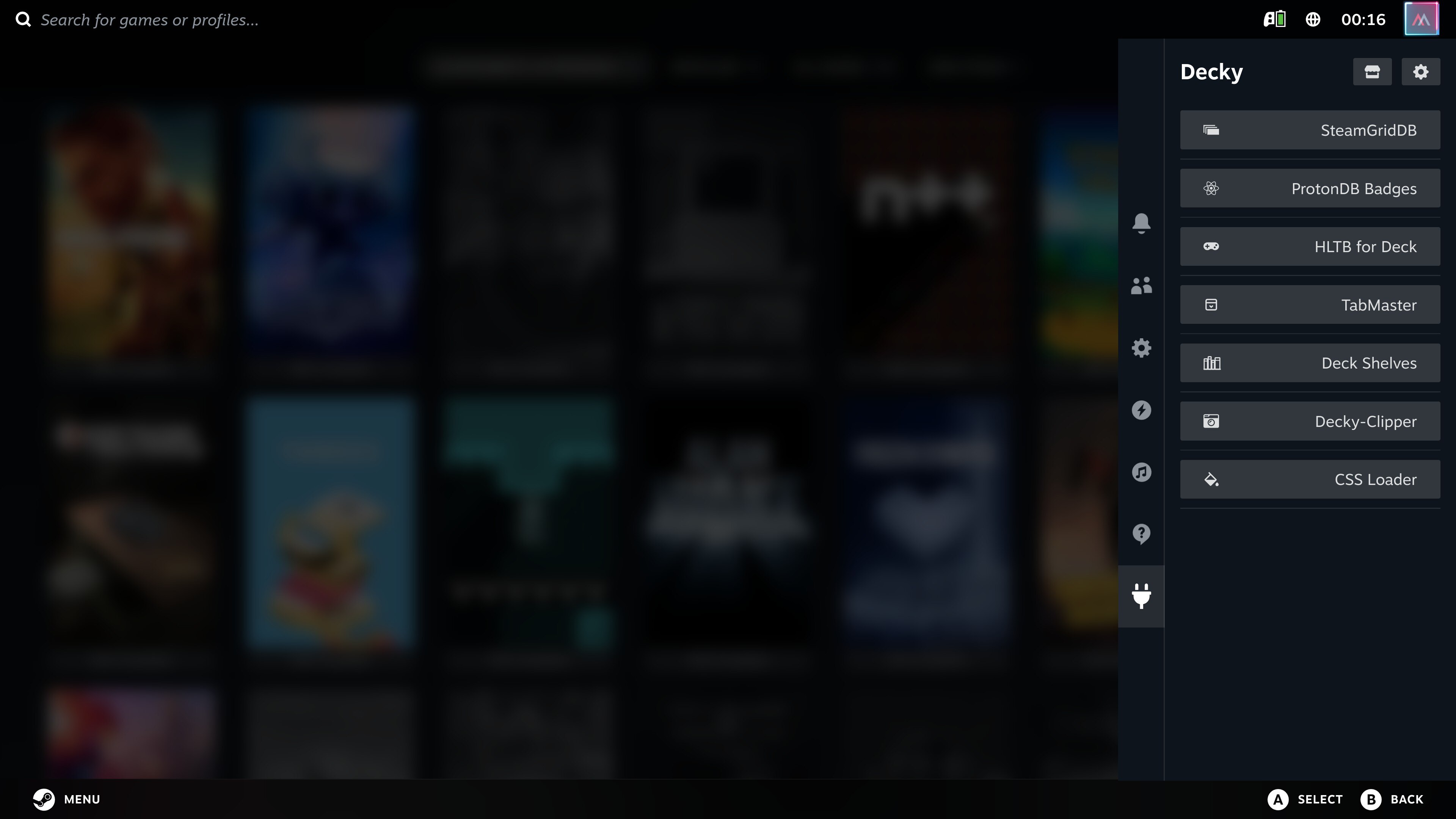
SteamGridDB
Lets you define custom artwork from the amazing steamgriddb.com for any type of image on all your games – “official games” as well as custom programs you might be adding like VacuumTube, or shortcuts to individual ROMs in an emulator. I’m not one to spend a crazy amount on that kind of customization because it doesn’t even sync across devices. But it is very nice being able to replace some janky old non-fitting images that were never updated to fit into the current UI with something much prettier that a person who cares created and uploaded to the database. Here’s what the selection UI looks like for picking a custom hero image:

ProtonDB Badges
Displays the ProtonDB rating for a game on it’s detail page – and that additional badge can be navigated to and pressed, which opens the corresponding ProtonDB detail page directly. Position and size/style of the badge are configurable.
HLTB for Deck
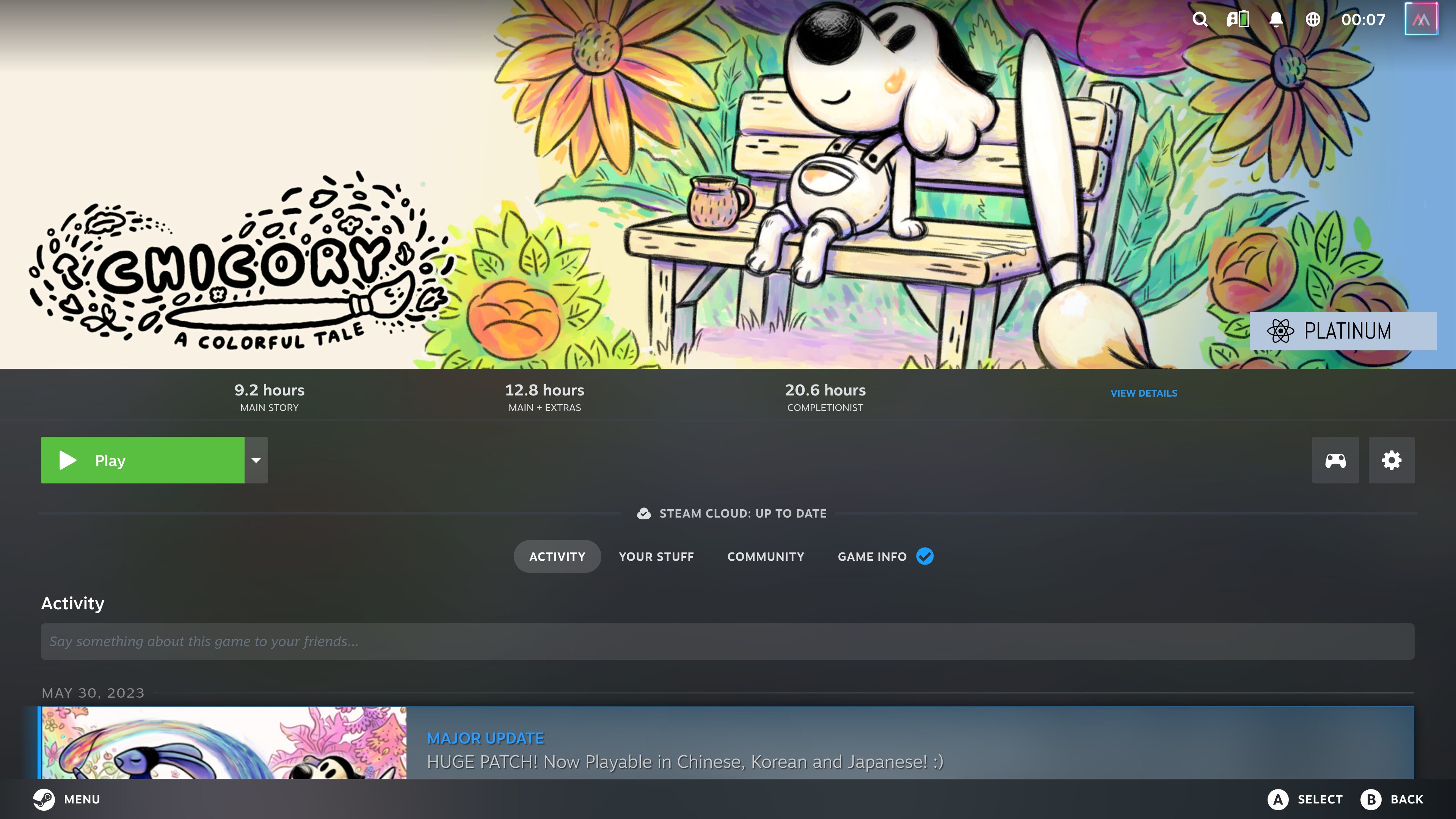
Much more important to me than the ProtonDB badge (because frankly, all the games just work – I don’t remember the last time I needed to look up any fine-tuning details) is the HowLongToBeat information right on the game detail page as well. I very, very often decide what to play next based on estimating for how long I’ll have to no-life the game to get all achievements. Not having to manually check the “Completionist” value for a game in the browser is amazing. And as with the ProtonDB badge, you can navigate to the website for full details easily as well:
TabMaster
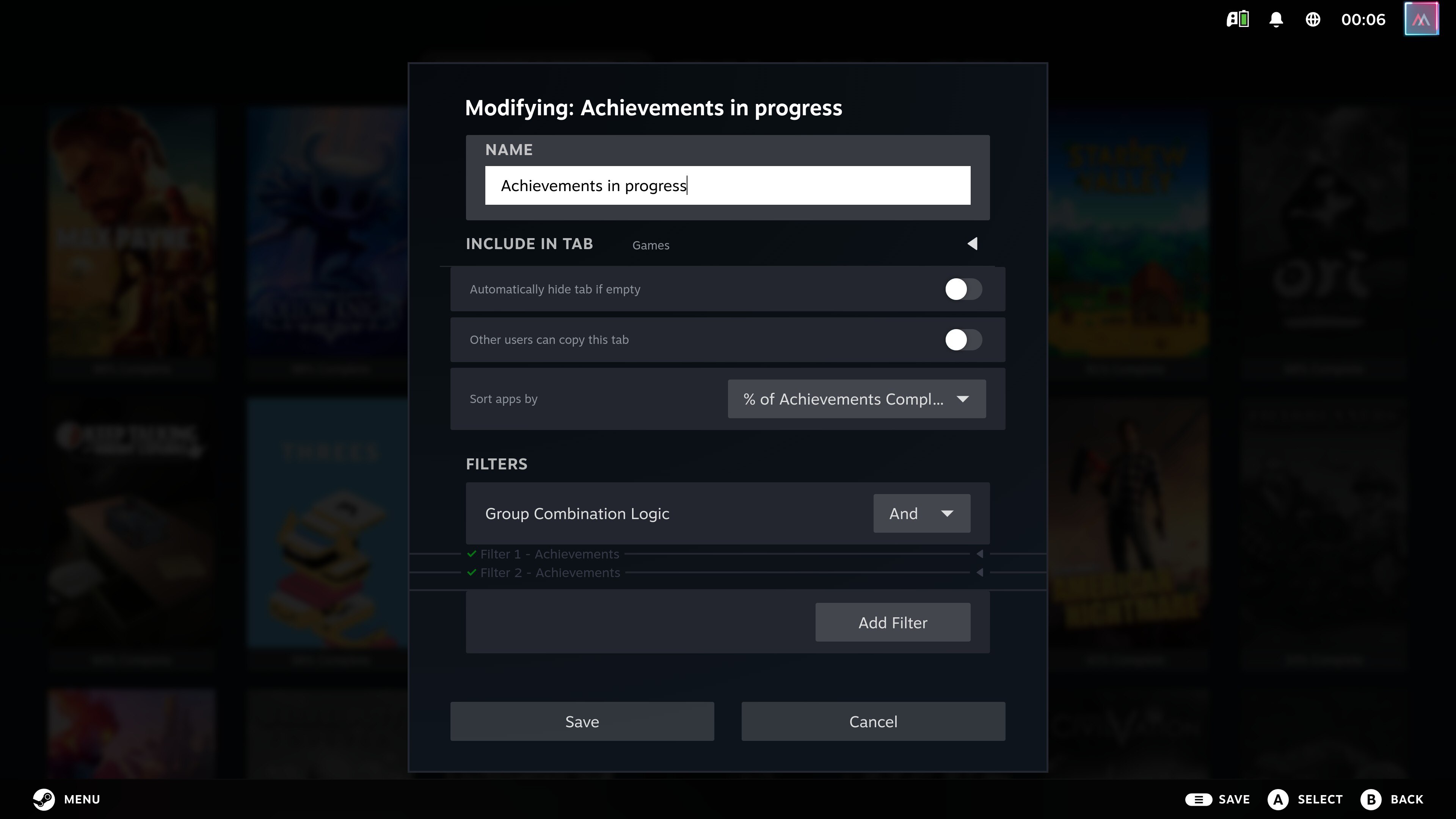
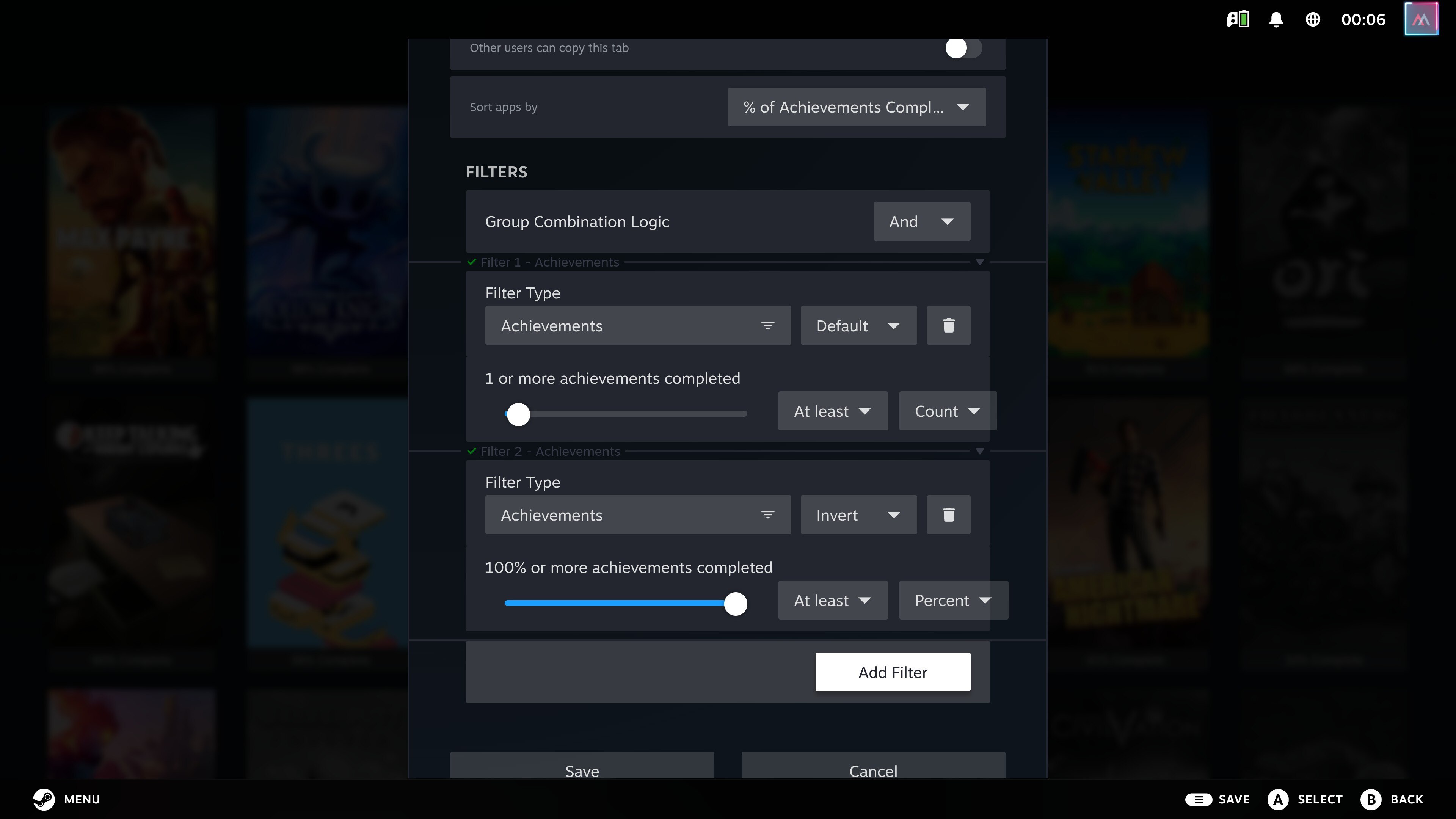
Gives you full control over the tabs in your library. For example, I absolutely do not care about soundtracks in Steam. This allows me to just hide that tab. And reorder the ones I want in a way that makes the most sense to me. And to define my own tabs, with complex filter criteria. I’ve only created one so far, but it is a massive quality of life improvement: As I mainly strive to 100% all the games I start these days, I very often am interested in seeing all the games where I have made some, but not yet 100%, progress in their achievements. Thanks to this plugin I now have a tab for that:
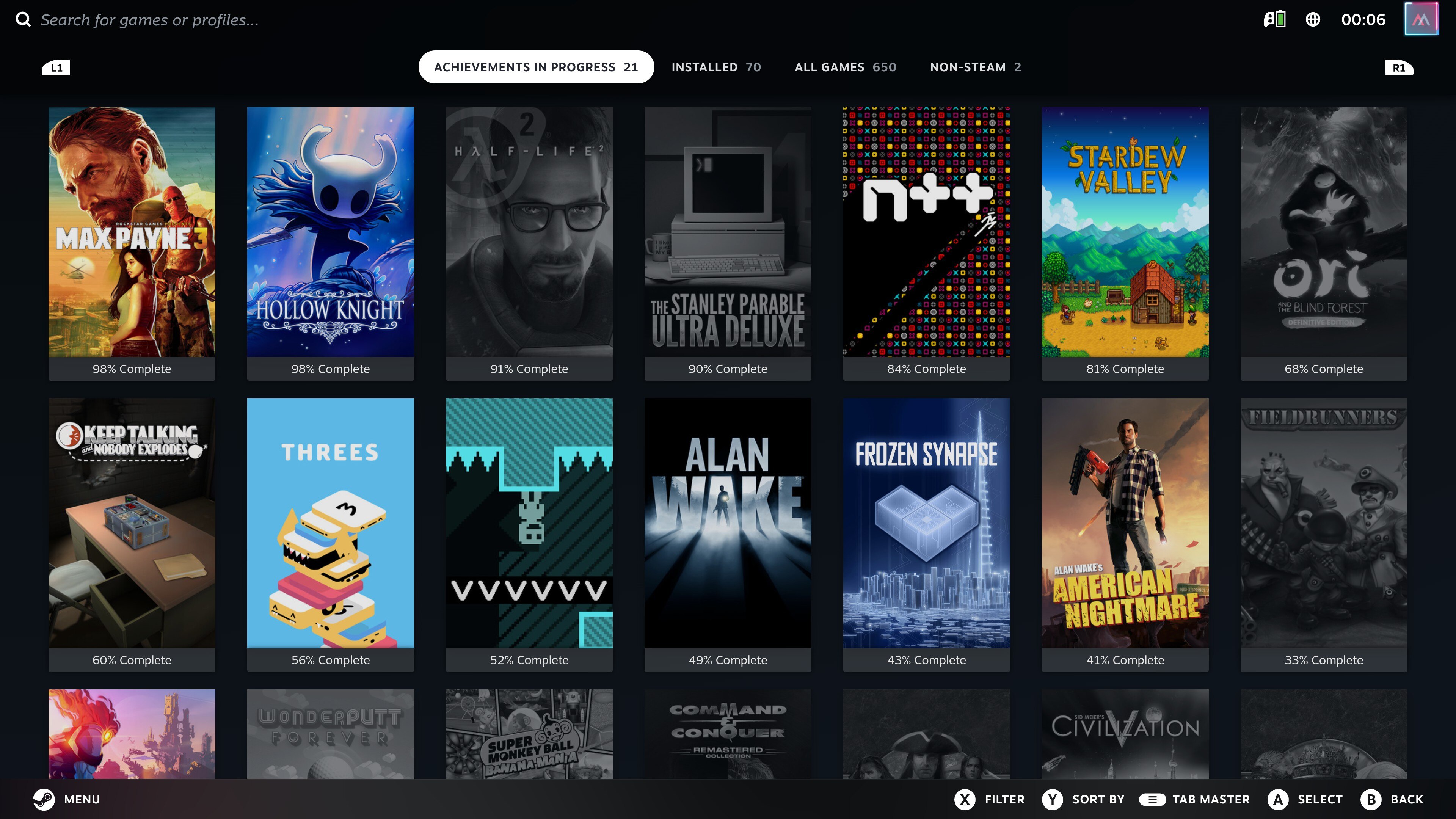
Here’s what the configuration for this tab look like:
Deck Shelves
I actually haven’t even had time to play with this one yet. It seems to be a more powerful version of TabMaster – the homepage has some impressive showcases.
Decky-Clipper
Allows doing recordings of the UI instead of just games. Seems a bit buggy, the videos are super stuttery for me. I used it for the video linked above to illustrate my gripes with deleting a background recording after a session, and it is barely usable. No big deal, not something I’ll see myself needing very often.
CSS Loader
Maybe you noticed some of my games were gray-scale above – that’s not because I manually picked that cover art, but due to this plugin. It’s basically UserStyles but for the Steam OS interface. You can browse the selection of tweaks and themes on the website, here’s what it looks like directly on the device:
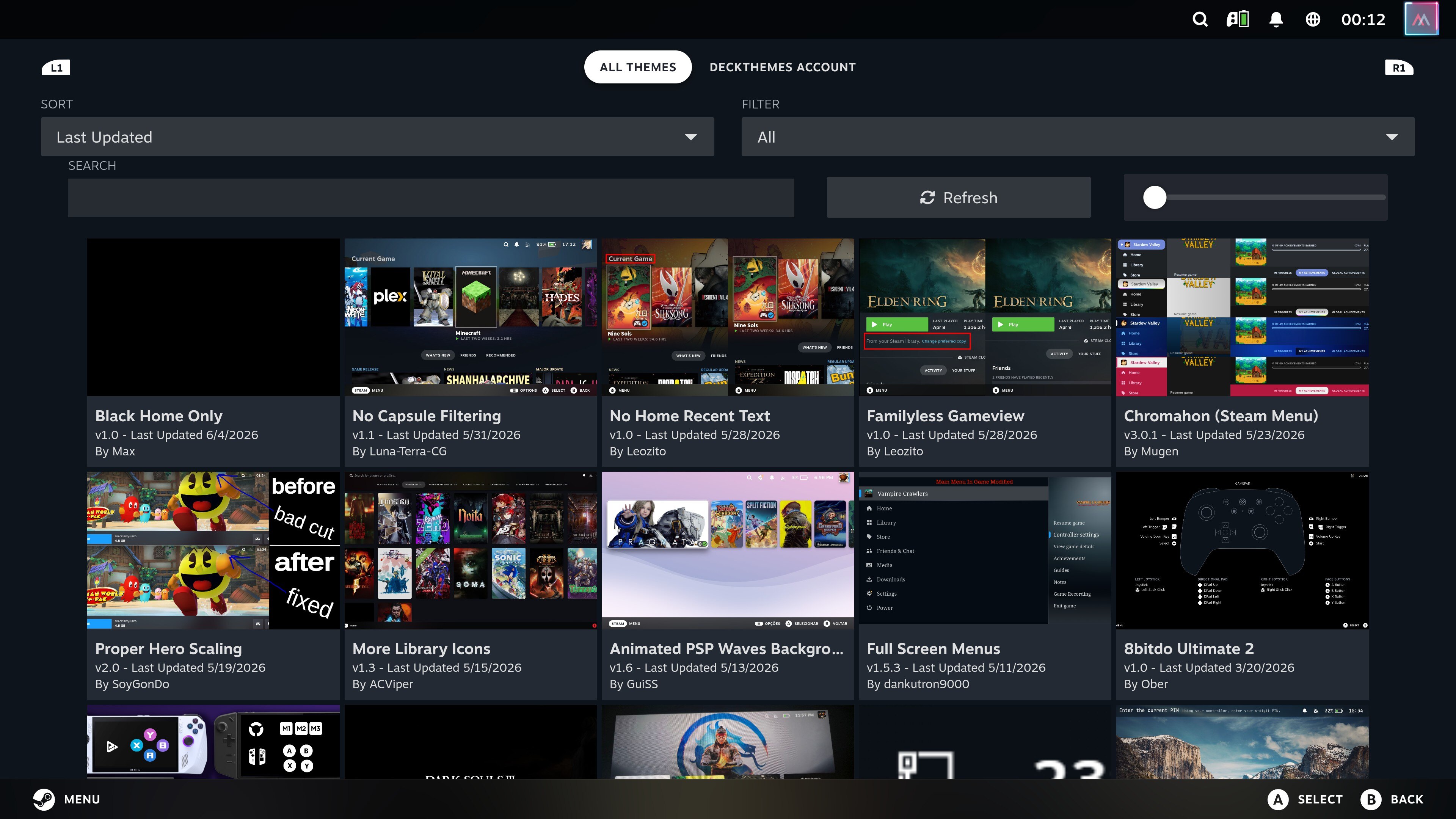
I haven’t picked a lot of themes – just greying out of uninstalled games, and hiding the Store from the menu. (Steam is pretty much the only store where I do spend money on digital goods, but I’m too millenial to do those purchases anywhere but on an actual computer. The store is still reachable, I just prefer it not cluttering up the menu when I almost never pick that option while using the menu.)

Bonus hack: Customize regular Steam
All this customization hype makes the desktop client feel kinda shitty in comparison. I haven’t been brave enough to try Millenium yet, but I did recently realize the craziest thing: because the Store in the desktop client is of course just Chrome in a trench-coat, you can actually install Chrome extensions into your Steam client. Right click a link on a store page in the client, pick “Open link in new tab” and you’ve got a URL bar through which you can easily navigate to the HLTB for Steam, SteamDB and Augmented Steam extensions and install them. (Download the *.crx file when prompted, then restart Steam – it’s a bit weird but it works.)
Steam Controller
The Steam Machine lottery didn’t allow me ordering one with the new controller. But I was already able to order one when it was first released two months ago, and have been a very happy user ever since it arrived in May. Initially, I was actually quite unsure if I’d even like the Steam Controller. About a year ago I replaced my dying “XBOX Wireless Controller” with an 8BitDo Ultimate 2 Wireless Controller and have been pretty satisfied with it. Just like with the Steam Machine itself, my trust in Valve as a good steward of their platform was a big reason why I still wanted to try the new controller as well. Another reason was simply to have an additional backup for when my brother comes over for some co-op gaming.
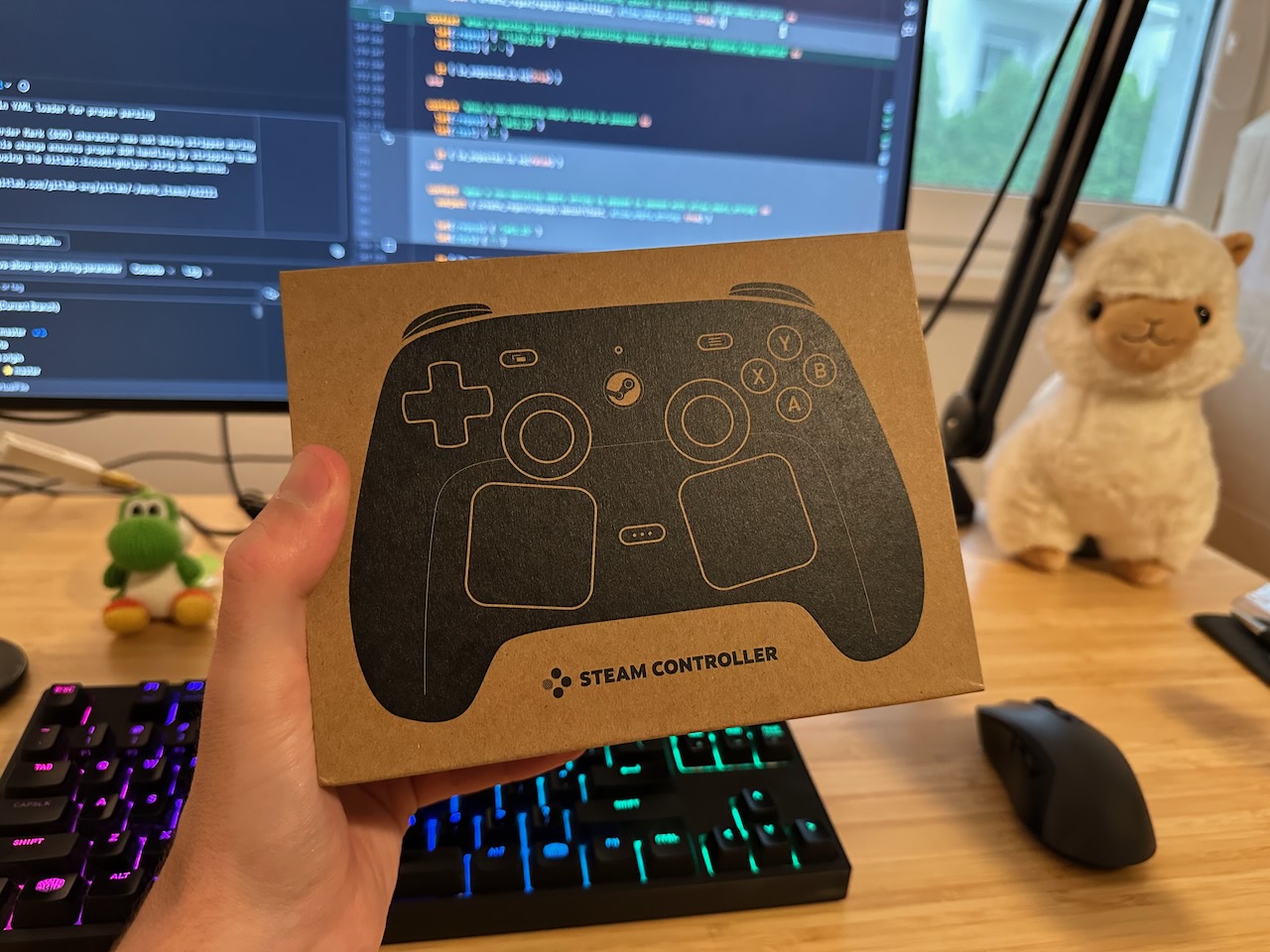
My main worry was the placement of the analog sticks. When I had the PS5 a few years ago for some Sony exclusives I was really surprised by how strongly I ended up disliking the different analog stick layout (with the left analog stick and the D-pad switched compared to almost all other controllers). I’ve been a PlayStation gamer for the entire PS3 and PS4 generation and never minded it then. But with the PS5 DualSense controller it almost hurt after longer sessions, so I wasn’t sure if years of PC gaming with the XBOX controller layout had made me incompatible with having the analog sticks positioned the way they are on the Steam Controller.
It wasn’t an issue at all, though. No matter how long I played, I never felt any discomfort. On the contrary, I got used to how amazing the controller feels so quickly that I didn’t even realize it. It was an incredibly busy time, so I didn’t have a lot of time for deep reflection on the new controller. Only when I recently picked up the 8BitDo again to test something did I notice how utterly alien it now felt in my hands. Hard to overstate how much I prefer the shape of the Steam Controller, and I will without a doubt stock up on a second one as soon as they’ll let me.
Using the Controller both with the Steam Machine and my gaming PC is incredibly comfortable – zero pains with constant repairing or other shenanigans. The controller has two slots that each can pair with a puck (which I have connected to my PC) or a Steam Machine directly. You can decide which slot to use when turning on the controller through a simple key combination. When powering it on through the normal on/off button, it uses the most recent slot. Beyond that you could even use Bluetooth for additional multi-device pairing. This may all sound insignificant, but it’s shocking how ill-conceived most devices are with details like that.
The one thing I really miss from the 8BitDo is it’s charging dock – much sexier than the puck, although this auto-charging experiment is a very cool party trick. I’ll probably see if I can’t just get a custom charging dock printed.
Steam Input
With all that praise for the controller itself, I do need to rant about Steam Input for a moment. It’s a layer between native controller inputs and a game, and Valve built that long before the new Steam Controller. It can be used with any kind of controller, and is often hailed as one of the most amazing technical achievements for PC gaming. It makes it possible to use a controller in games that don’t have any official controller support, it allows remapping buttons to your heart’s content even if the game you’re playing has no configuration for controls, it allows using a controller for doing things on the desktop, it has built-in configuration sharing with a massive community around it. And all of that is amazing. But I’ve also had a ton of frustrations with it.
When using the 8BitDo or XBOX controller I can simply disable Steam Input, and things still just work in pretty much everything I’ve been playing in the last decade – modern games usually have controller support, and I’m not often playing anything too obscure. The Steam Controller forces you to Steam Input.
That means I had to completely recreate my custom controls for Rocket League, as I hadn’t previously used Steam Input there. In Hollow Knight I had a slew of bizarre issues: Sometimes the controller would stop working in menus mid-game. I would start playing, walk around a bit, go through some dialogue, walk some more, talk to another NPC – and suddenly the controller didn’t work anymore. When exiting the dialogue via keyboard, it still worked perfectly fine for regular gameplay. Nothing similar happened in other games, so this is probably specific to HK – but it also never happened in the dozens of hours I played this game before the Steam Controller.
Another extremely annoying thing: sometimes instead of properly “locking onto the game” and providing inputs only to the game, it felt as if it was actually using desktop controls. Things would mostly work as expected – the game is the top-most thing on the desktop after all. But when holding left for too long – or too quickly/intensely, I never figured out what exactly triggers it – the game would suddenly lose focus and instead of controlling the game I’d see the mouse cursor being moved around on my second screen (which is to the left of my main screen). And once the focus was lost, it also meant that the buttons now were performing clicks on the desktop or other applications. This was so annoying that I ended up configuring a custom preset for desktop controls, effectively disabling them by configuring it so that every single button and other control does nothing. That seems to have helped, but it’s hard to be sure as I never really understood what was happening in the first place – maybe it was just that I stopped playing the games that had this issue.
Fun fact: Steam Input settings sync across devices. That’s of course a great thing, but when I went into desktop mode on the Steam Machine to enable SSH I first thought there’s some bug – the controller only worked for a split second, then stopped working. But what I now assume actually happened is that right after logging into the desktop session, Linux is taking native controller input – but because Steam also auto-starts in desktop mode, the Steam Input layer takes over a split-second later and my custom preset for desktop mode applied. Once I went and reset the “don’t do anything” preset, I could use the controller as expected. And to be clear: It is a super useful and well done way to use a controller for regular PC tasks. I don’t actually want it to be disabled, that was just a desperate attempt to solve this weird other issue.
Clearly none of this was bad enough to deter me from the Steam Controller. There have been a few firmware and software updates already as well, so maybe some of it was just bugs that have since been fixed. And I am actually excited to engage more with Steam Input and make use of the incredible flexibility it enables – but I could really have done without the quirks. They usually don’t happen when you’re in the mood for a debugging session.
Steam Frame
To end on a positive note: The only item from their original announcement last year that I really desperately want is the Steam Frame. I’ve been holding out on catching up with PCVR for many years now, after having enjoyed what the original PSVR did a decade ago. Based on recent shipment tracking information it can’t be much longer before this final piece of the puzzle finally goes into pre-order as well. If I will only like it half as much as the Machine and the Controller, it’s already a winner.
Just look at speculation from the time of the announcement. Painful. ↩︎
There’s a couple of workarounds, I’m using this pretty simple solution using a
wireplumberscript. ↩︎I’m aware of the
11111menu, but that’s not detailed enough. ↩︎